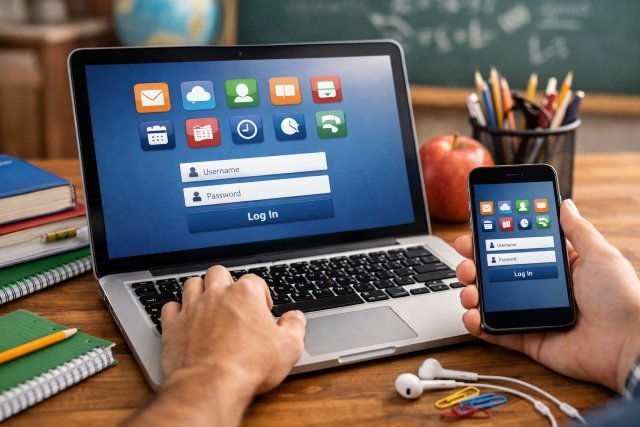
If you are trying to understand how Mypascoconnect works, the short version is this: it is the Pasco County Schools single sign-on system that gives students access to school apps and digital tools from one dashboard, while parents are directed to district parent resources and related portals such as myStudent and myLearning/Canvas. Official Pasco login pages state that students sign in with their myPascoConnect username and password, and they also note that parents can retrieve student login details through the myStudent parent portal.
For many families, the biggest challenge is not the platform itself. It is knowing which login goes where. Students usually begin with Mypascoconnect for classroom tools and connected apps, while parents often use district parent pages, myStudent for grades and attendance, and a separate parent observer flow for myLearning/Canvas. Pasco’s official resources and school help pages consistently separate these paths, which is why understanding the login structure saves time and frustration.
What Is Mypascoconnect?
Mypascoconnect is the district’s access point for school-related digital tools. On Pasco school pages, it is described as a place where students and parents can review grades, attendance, and more, while Pasco eSchool resources also explain that students use myPascoConnect to open myLearning/Canvas and other digital resources from one dashboard.
In practical terms, Mypascoconnect works like a front door. Instead of remembering a different website for every school service, students sign in once and then open the tools they need. That matters because modern school systems depend on multiple platforms at the same time, including learning management systems, productivity tools, and instructional apps. Pasco’s sign-in and resource pages show that the district uses single sign-on across many connected services.
This is why the keyword Mypascoconnect login matters so much for families. People are not only searching for a sign-in page. They are trying to figure out how to access grades, assignments, course materials, attendance information, and school communication without getting sent in circles.
How Students Use Mypascoconnect Login
For students, the login path is the clearest. The official Pasco sign-in page says students should log in with their myPascoConnect username and password. The same page also mentions a QR Badge option for use at school, which can make login faster for younger students or classroom devices.
Once signed in, students can usually open connected school resources from their dashboard. Pasco eSchool’s Canvas quick-start guidance tells students to log in to myPascoConnect first and then click the myLearning icon. Another Pasco resource explains that students can access digital resources and learning materials from myPascoConnect, including Canvas.
That simple workflow is one reason single sign-on systems are so useful in K–12 schools. A student does not need to memorize separate entry points for every app. They sign in once, open the dashboard, and launch the school tools they need for the day. From a usability standpoint, that reduces confusion, especially for elementary and middle school students who may be using district accounts across several classes.
How Parents Access School Tools Through Mypascoconnect-Related Portals
Parents often expect Mypascoconnect to work exactly like a student dashboard, but Pasco’s official pages point families toward a broader set of parent resources. The Pasco parent information page serves as the main hub, while multiple district and school pages direct parents to myStudent for student information and to a separate parent observer setup for myLearning/Canvas.
This distinction matters. Students generally enter through Mypascoconnect with district credentials. Parents, on the other hand, often need either their own parent portal account or a parent observer account, depending on what they want to view. Official Pasco help pages explain that parents can create a myStudent parent portal account through the district’s parent section, and Pasco eSchool provides separate steps for creating a parent Canvas observer account using a student pairing code.
So when families search for “Mypascoconnect login for parents,” the answer is slightly more nuanced than it first appears. Parents are part of the overall ecosystem, but their access often runs through linked parent services rather than the exact same student login flow.
Mypascoconnect and myStudent: Why Both Matter
A lot of confusion comes from mixing up Mypascoconnect and myStudent. They are related, but they are not the same thing. School and district resources describe myStudent as the parent portal used to track student information such as grades and attendance, while Mypascoconnect is the launch point for student-accessed digital tools and connected resources.
That means families may use both systems for different purposes. A student may log into Mypascoconnect to open instructional apps or get into myLearning. A parent may sign into myStudent to check attendance, monitor performance, or retrieve student login details when needed. The official Pasco sign-in page specifically notes that parents can retrieve a student’s username and password from their myStudent parent portal.
In real life, this setup actually makes sense once you see the roles clearly. One system focuses on student access to learning tools. The other focuses more on family oversight and school information.
How Mypascoconnect Connects to myLearning and Canvas
For online classes, coursework, and teacher materials, Pasco points users from myPascoConnect into myLearning, the district’s Canvas implementation. Pasco eSchool’s official quick-start instructions say the process begins by logging into myPascoconnect and then selecting the myLearning icon. Another Pasco login page describes myLearning as Pasco County Schools’ implementation of Canvas and offers separate login options based on user type, including students and parents.
For parents who want visibility into assignments and class activity, Pasco eSchool also provides official directions for creating a Parent Observer account in Canvas. Those instructions explain that a student generates a pairing code from their account, and the parent then uses that code to create observer access.
This is a good example of why families sometimes feel lost when searching only for “Mypascoconnect login.” The search phrase sounds singular, but the actual school technology experience involves several connected tools with different account types.
Common Mypascoconnect Login Problems and What Usually Causes Them
Most login issues come down to one of a few common causes. The first is using the wrong account type. Students should use their district myPascoConnect credentials, while parents may need myStudent or Canvas observer access instead, depending on the task. Official Pasco pages make that separation clear.
The second issue is missing or forgotten credentials. Pasco’s official sign-in page says that if a student needs help, they can ask a teacher, or a parent can retrieve the username and password through the myStudent parent portal. That tells families where recovery usually starts.
A third issue is trying to access a course or class tool from the wrong place. Pasco’s Canvas quick-start material specifically says to begin in myPascoconnect and then open myLearning from there. When users skip the launch path, they sometimes think the system is broken, when the real issue is simply starting at the wrong entry point.
Browser and device setup can also matter. ClassLink’s official login pages include a browser check and help options, which suggests that compatibility and device readiness are part of the support flow for login issues.
A Simple Real-World Example for Families
Imagine a middle school student who needs to open course materials, submit work, and check class resources. That student starts with Mypascoconnect, signs in using district credentials, and opens the needed app tiles, including myLearning if coursework is in Canvas.
Now imagine the parent wants to monitor attendance and grades. That parent may use myStudent through Pasco’s parent resources, and if they also want to observe coursework in Canvas, they create a parent observer account using the district’s official setup instructions.
That split path explains a lot. The tools are connected, but they are not identical, and families get better results when they treat each one as part of a larger school-access system rather than expecting one username to do everything for everyone.
Why Single Sign-On Matters for Schools
From a broader education technology perspective, systems like Mypascoconnect help reduce password overload and make digital learning more manageable. Pasco’s SSO environment links access to a large set of services, and school pages repeatedly present myPascoConnect as the starting point for students, staff, and sometimes families seeking connected services.
That matters because digital learning environments are only useful when people can actually get into them. A single dashboard reduces friction. It also gives districts a cleaner support model, since schools can teach families one starting point and then explain where specific related portals fit.
FAQ: What Families Usually Ask About Mypascoconnect
Is Mypascoconnect only for students?
Not exactly. Students clearly use it as their main sign-in dashboard, but Pasco school pages also describe myPascoConnect as part of the experience for students, parents, and staff. Even so, parent access often routes through related tools like myStudent or Canvas observer accounts instead of the exact same login path a student uses.
Can parents get a student’s Mypascoconnect username and password?
Yes. Pasco’s official student sign-in page says parents can retrieve a student’s username and password through their myStudent parent portal.
How do parents view coursework in Canvas?
Pasco eSchool’s official instructions say parents need a Parent Observer account in myLearning/Canvas, and that account setup requires a student pairing code generated from the student’s Canvas account.
Where should students start if they need assignments or class tools?
Pasco’s guidance says students should log into myPascoconnect first and then select myLearning or other needed tools from the dashboard.
Final Thoughts on Mypascoconnect Login
The best way to think about Mypascoconnect is as the starting point in a connected school technology system. For students, it is the main doorway to class tools and digital resources. For parents, it is part of a bigger access structure that also includes myStudent for school information and myLearning/Canvas observer access for coursework visibility. Once families understand those different paths, the login process becomes much easier to manage.
If you are writing for search intent, this topic performs best when the content answers the real user question behind the keyword. People searching Mypascoconnect usually want clarity, not jargon. They want to know where to sign in, what parents should use, how students launch class tools, and what to do if login details are missing.